
How to Book an Apartment at Leo Apartment: Step-by-Step Guide
 Leo Apartment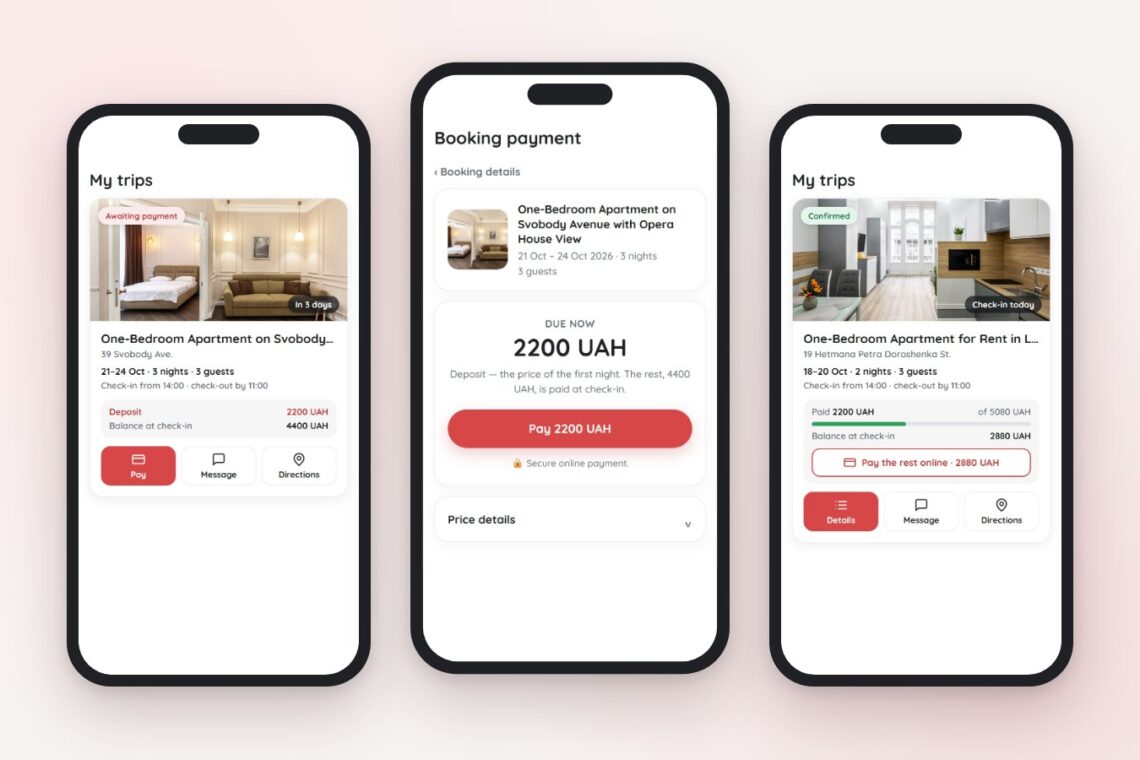
Booking an apartment in Lviv online with Leo Apartment takes a few minutes and involves no intermediaries: you choose a place, send a request, the host confirms it and you pay a small prepayment. Everything after that, from paying the rest to changing dates and chatting with the host, happens in your personal account.
This guide walks you step by step through booking on our website, the notifications you receive and what you can do in your account. The screenshots come from the mobile version, which most of our guests use.
Why Book Directly
- No booking fee. You only pay for your stay and any services you choose.
- The host is in touch. Questions about check-in, parking or an early arrival can be asked in the chat right on the website.
- Discounts. New guests get a first-booking discount, and returning guests get a personal discount and a code for leaving a review.
- Everything in one place. Status, payments, address and directions are in your account, not scattered across a dozen emails.
Step 1. Choose an Apartment and Dates
Open our catalogue of short-term apartments in Lviv and enter your check-in and check-out dates, the number of adults and children and whether you are travelling with a pet. The search shows apartments that are free on those dates.
Each apartment page has a calendar of available dates, photos, house rules and a price breakdown. Prices can differ on weekdays and weekends, and the host sets the minimum stay for each apartment. If you are travelling with a pet or a baby, select it under additional services.
Step 2. Send a Booking Request
You do not need to register in advance: your name, phone number and email are enough. The first-booking discount is applied automatically, and if you have a gift certificate, enter its code while booking and the amount drops straight away.
Once sent, the request appears in your account under “Trips” with the status “Awaiting confirmation”.
Step 3. Wait for Confirmation
The host checks the dates and confirms the request, usually within a few hours. You receive an email right away, plus a Telegram message or push notification if you have enabled them in your profile.
Step 4. Pay the Prepayment
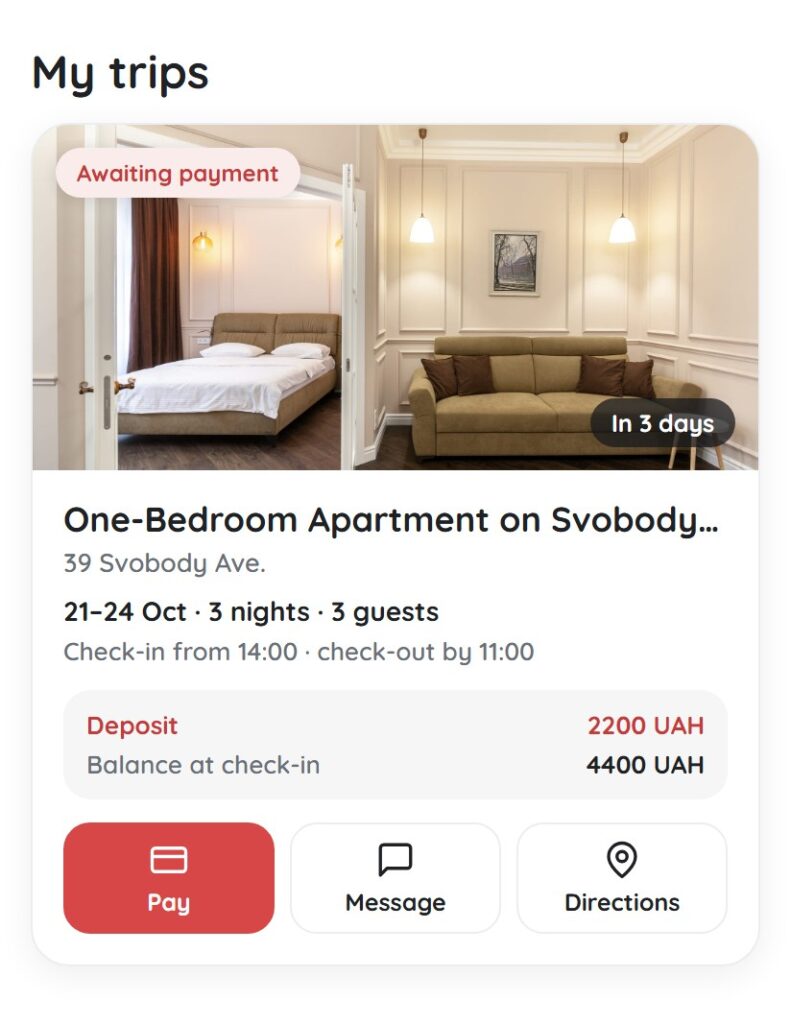
After confirmation the status changes to “Awaiting payment”, and a “Pay” button appears in the email and in your account. The prepayment is usually the price of the first night. You pay the rest at check-in or online.
Payment takes place on a secure bank page: by Visa or Mastercard, Apple Pay or Google Pay. We never see or store your card details.
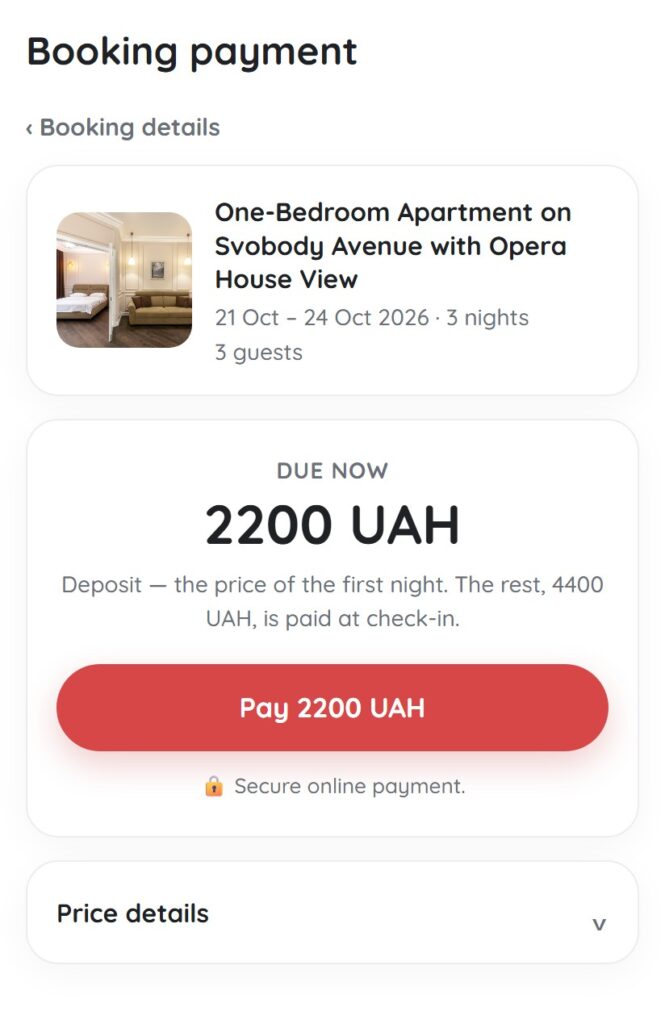
The prepayment must be made within 24 hours of confirmation. If check-in is today or tomorrow, the time to pay is shorter. If you miss it, the request is cancelled automatically and the dates become available again; just send a new request.
Step 5. Manage Your Trip in Your Account
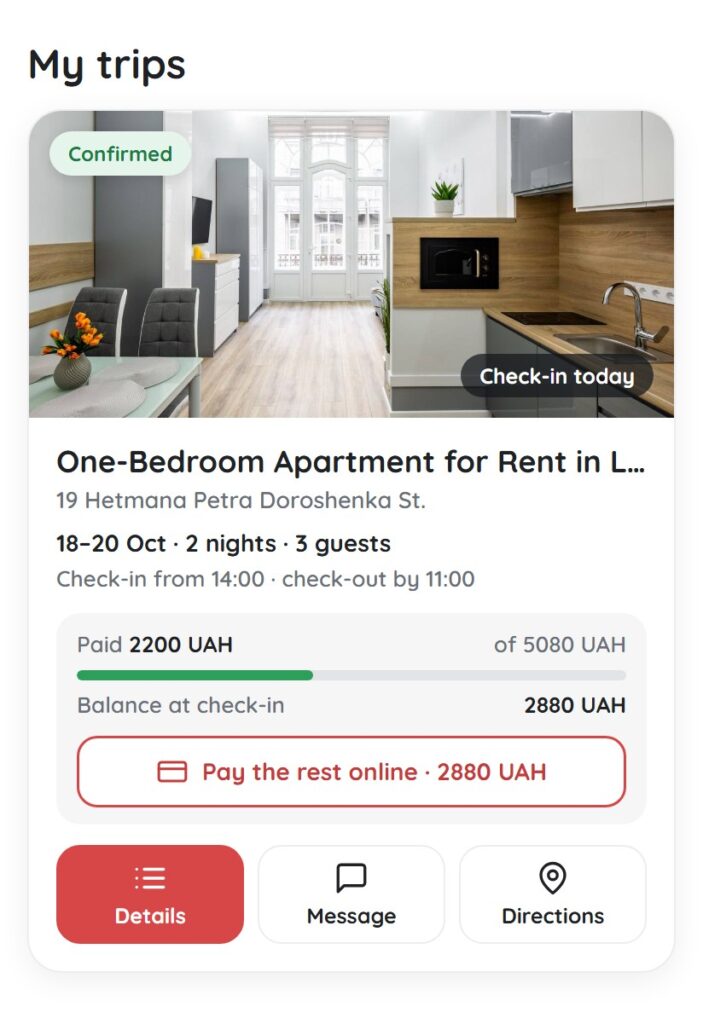
After payment the booking gets the status “Confirmed”. The “Trips” section shows everything that matters:
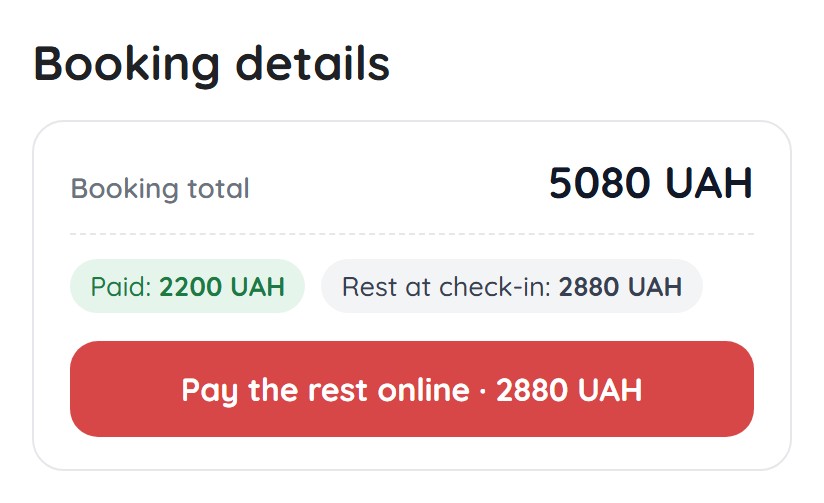
- how much you have paid and the balance due at check-in;
- the “Pay the rest online” button, which you can use at any time up to and including the day of departure;
- check-in and check-out times and the apartment address;
- the “Details”, “Message” and “Directions” buttons; the last one opens the route to the apartment in Google Maps.
The booking details show the full price breakdown: nights, additional services, discounts, the tourist tax, the amount paid and the balance.
How to Change Your Booking Dates
Plans changed? Open the booking details and tap “Request date change”. Choose new dates and send the request: the host will see it and approve or decline it, and you will get a notification.
Once approved, the new dates are applied automatically. The price is recalculated only for the difference between the old and new nights, so discounts and services already applied are kept.
Notifications: Email, Telegram and Push
Notification settings are in your account under “Profile” → “Notifications”.
- Email. Booking emails always arrive and cannot be turned off, so you never miss anything important.
- Telegram. Turn on the switch and our bot opens. Press “Start”, and bookings, payments and new messages from the host will arrive in Telegram.
- Push. Notifications on your phone or computer, even when the site is closed. On iPhone, first add the site to your Home Screen via “Share” and open it from there.
Discounts, Gift Certificates and Reviews
- First-booking discount, applied automatically for new guests.
- Personal discount, permanent while your profile has your email, first name, last name, phone number and photo filled in.
- Gift certificates, so you can give a stay in Lviv to someone close to you.
- A code for your review. After check-out we will ask you to rate your stay, and for your review you will receive a personal discount code for your next booking.
What to Know about Cancellation
You can cancel a booking in the booking details. The prepayment is usually non-refundable unless the terms of a particular apartment say otherwise, so if your plans change, try a date change request first. All terms are on our FAQ page.
Conclusion
Online booking at Leo Apartment comes down to five simple steps: request, confirmation, prepayment, check-in and paying the rest whenever it suits you. The chat with the host, date changes and Telegram notifications keep your trip calm from the first click to check-out.
Still choosing a place? Read how to rent a short-term apartment in Lviv and avoid scams, then book an apartment in Lviv online in our catalogue, directly and with no fee.
FAQ about Online Booking
Do I need to register to book an apartment?
No. Your name, phone number and email in the booking form are enough. An account is handy for tracking the status, messaging the host and getting discounts.
How long does confirmation take?
Usually a few hours. You will receive an email, plus a Telegram message or push notification if you have enabled them.
How long do I have to pay the prepayment?
24 hours after confirmation, or less if check-in is today or tomorrow. Otherwise the request is cancelled automatically.
When can I pay the rest?
At check-in or online in your account with the “Pay the rest online” button, up to and including the day of departure.
How do I change dates after paying?
In the booking details, tap “Request date change”. The new dates apply once the host confirms them.
Where do I turn on Telegram notifications?
In your account: “Profile” → “Notifications”. Turn on Telegram and press “Start” in the bot.



























Join the discussion